

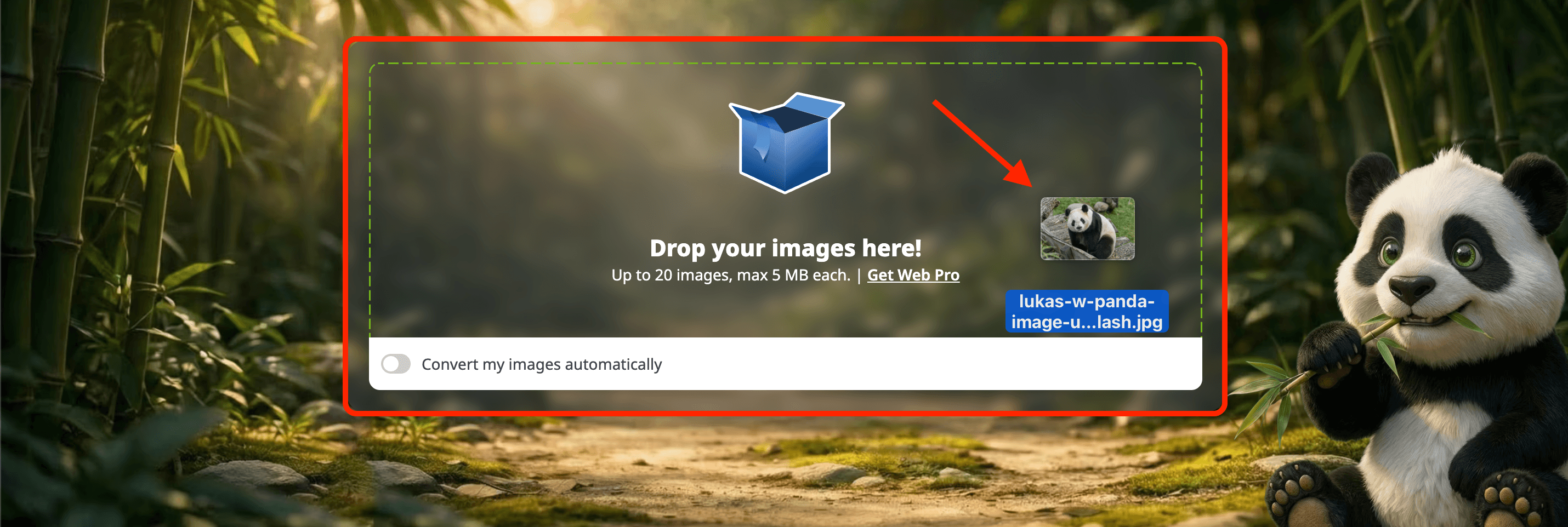
1. Drag and drop your images into the upload box
Or click on the box to select images from your device.
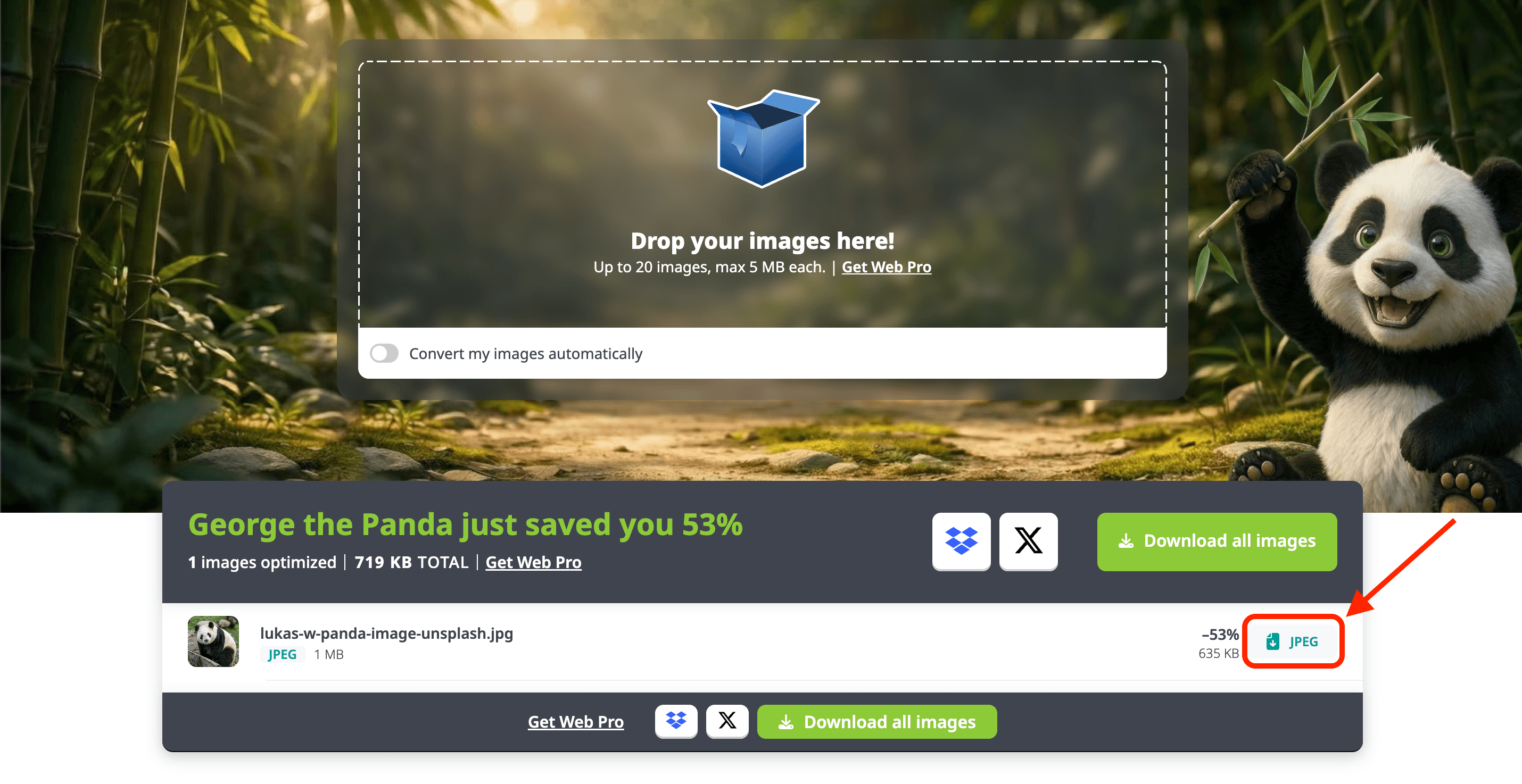
2. Download your images
Click the download button next to your compressed image.
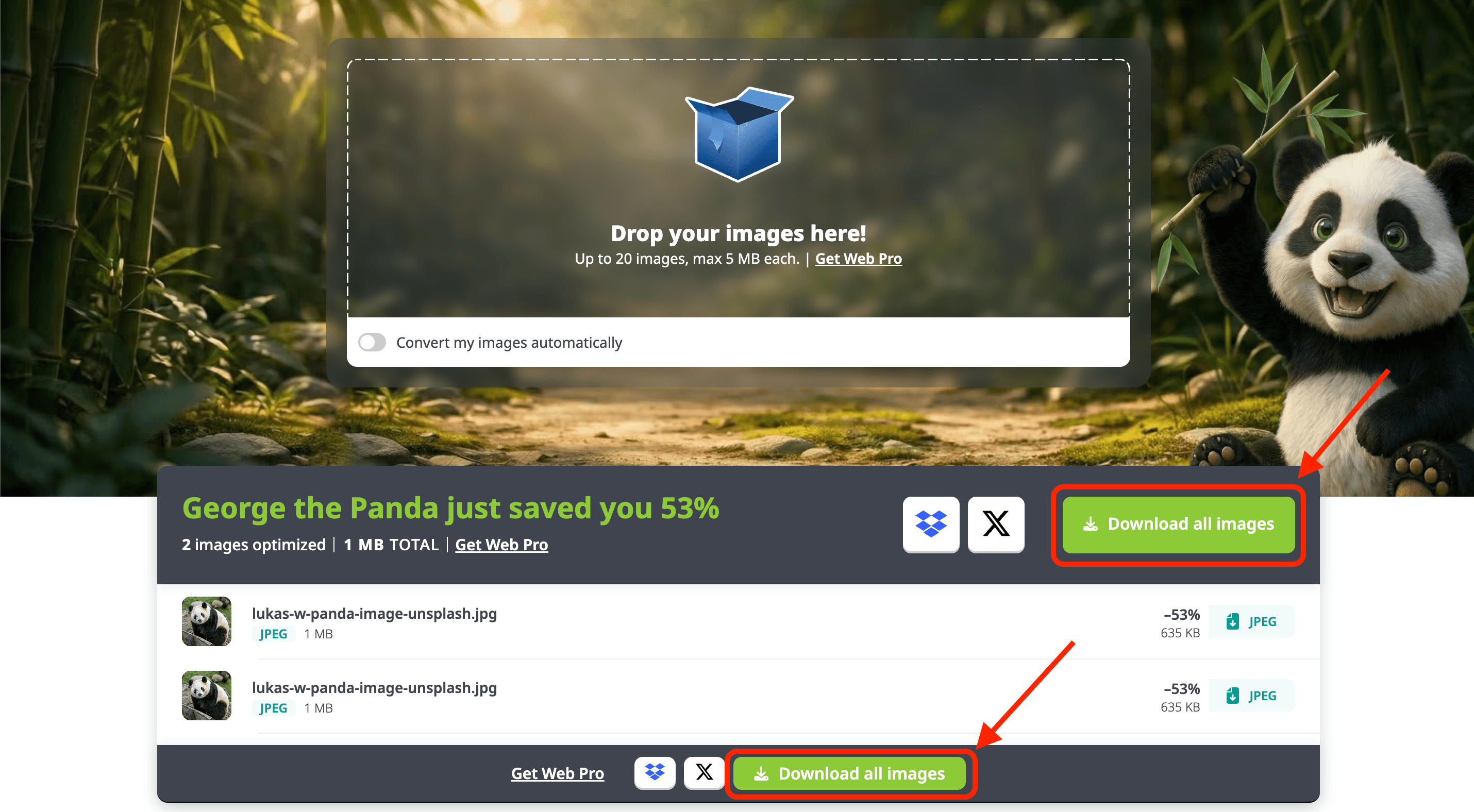
If you are compressing multiple images, you can also select “Download all images” to download all images at once.
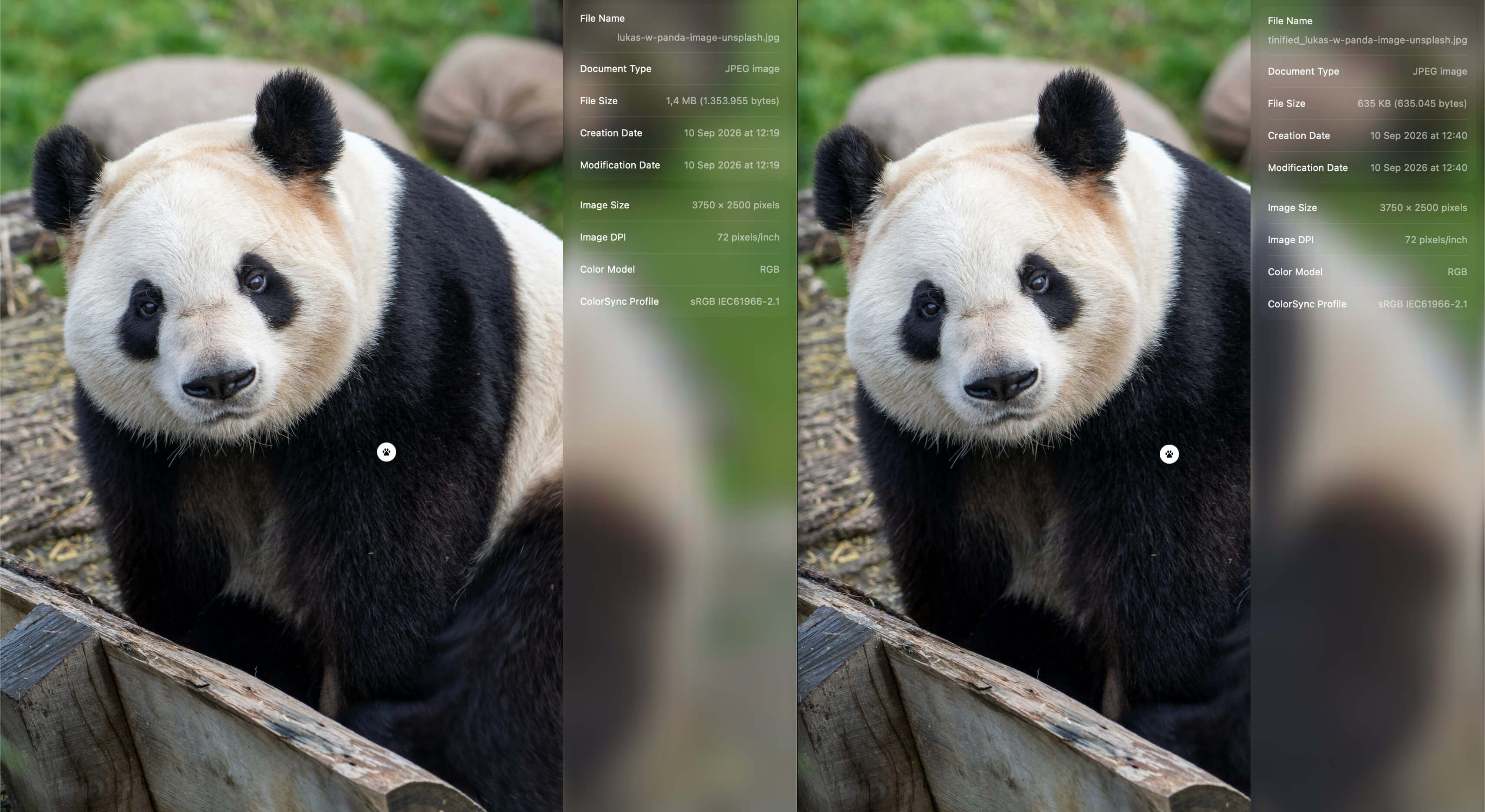
3. The compressed image is now downloaded on your device
You can now open the newly converted file on your device.
Comparing the original PNG (left) with the compressed PNG file (right), the file size is now reduced from 1.4 MB to 635 KB (53% decrease), and the image still looks great without visible quality loss!
TIP: If you’d like your images to be even smaller, you can try converting the images to other formats such as WebP or AVIF.
Want to know how to convert your images? Read our step-by-step guide on using TinyPNG to convert images into other formats.
Want to learn more about image compression? You can find relevant information on the Tinify Blog.
Do you have other questions? You can find more information on our Knowledge Base or contact our support via email.